Design 4 Space
How to add a staff name card
Every designer and staff member has a digital name card at its own web address. This guide shows you how to add a new one, edit an existing one, and take one down — no technical knowledge needed.
Before you start
Where you work: e-namecard.design4space.com.sg/wp-admin
Your username and password were sent to you separately — they are deliberately not written in this guide. If you don't have them, ask Reputifly.
Adding a new card
-
Open Name Cards
Sign in, then in the black menu down the left, click Name Cards. You'll see every card that exists today.
-
Click "Add New Name Card"
It's the button next to the page heading, and also the second item under Name Cards in the left menu.
-
Type the person's name in the title box
Put the full name exactly as it should read on the card — for example
Vincent Chuah. This name is also what creates the card's web address, so type it properly the first time. -
Fill in the Namecard Details box
Six fields. The four marked with a red * are required — the card won't be right without them.
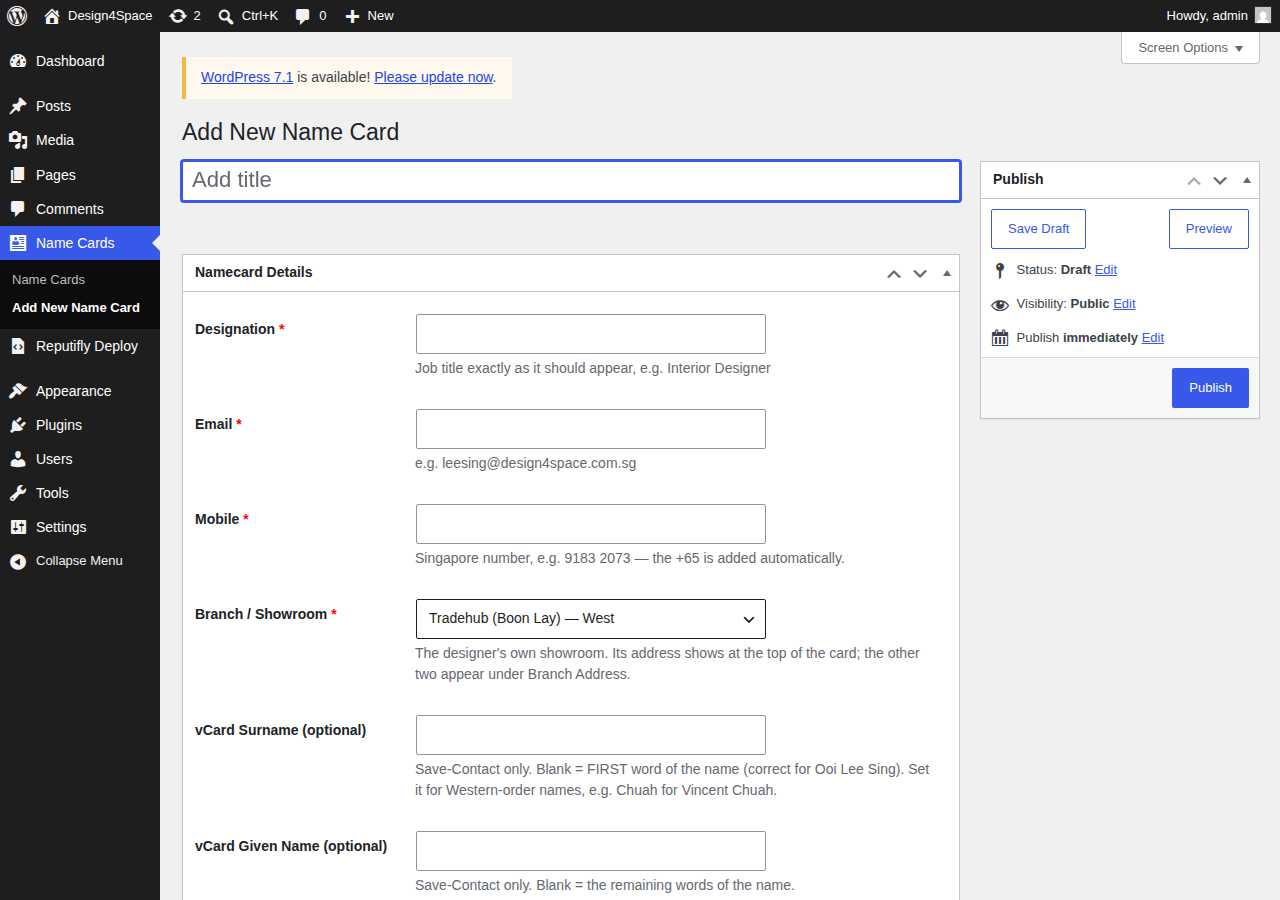
The Add New Name Card screen. Title box at the top, the six details below, Publish button on the right. -
Designation *
The job title exactly as it should appear on the card — for example
Interior DesignerorMarketing Executive. Whatever you type here is what people read. -
Email *
Their work email, e.g.
leesing@design4space.com.sg. It becomes a tap-to-email link on the card. -
Mobile *
The Singapore mobile number, e.g.
9183 2073. Do not type+65— it is added automatically. It becomes a tap-to-call link. -
Branch / Showroom *
Pick the showroom this person actually works from — Tradehub (Boon Lay), Toa Payoh, or Paya Lebar. Their own showroom's address shows at the top of the card; the other two appear further down under "Branch Address". Getting this wrong puts the wrong address next to their name.
-
vCard Surname (optional)
Only affects the "Save Contact" button, not what's printed on the card. Leave it blank and the first word of the name is treated as the surname — correct for names like
Ooi Lee Sing. Fill it in for Western-order names: forVincent Chuah, typeChuah. -
vCard Given Name (optional)
Also Save-Contact only. Leave blank and it uses the remaining words of the name. For
Vincent Chuah, typeVincent.
-
Designation *
-
Click Publish
The blue Publish button is in the box on the top right. The card goes live immediately at its own address:
e-namecard.design4space.com.sg/namecard/vincent-chuah/That address is what you print on a QR code, put in an email signature, or send over WhatsApp.
-
Check it
Open the address on your phone. Check the name, the job title, the phone number, and that the address at the top is the right showroom. Tap the call and email buttons once to be sure.
Editing or removing a card
Go to Name Cards in the left menu. Every card is listed. Hover over a name and four options appear under it.
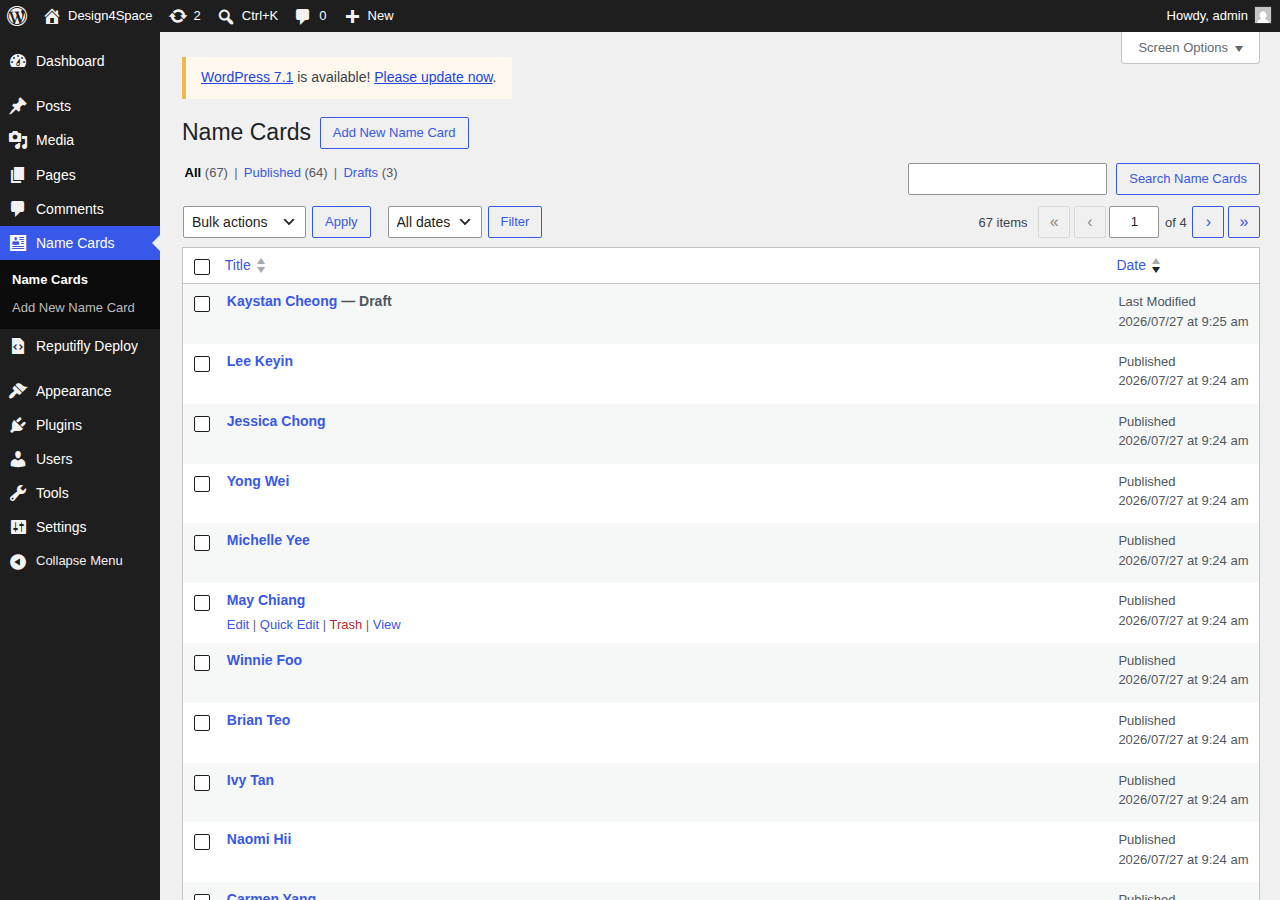
- Edit — opens the same screen you used to create it. Change what you need, then click Update. Changes are live straight away.
- Quick Edit — for renaming or changing the web address without opening the full screen.
- View — opens the live card as the public sees it.
- Trash — takes the card offline. Use this when someone leaves. It is recoverable from the Trash view if you change your mind.
Drafts vs published
At the top of the Name Cards list you'll see filters: All, Published and Drafts.
A draft is saved but not live — its address will not work for anyone. If you prepared a card ahead of someone's start date, remember to come back and click Publish, otherwise their link is dead when they hand it out.
Changing a card's web address
The address is created from the name you typed, so Vincent Chuah becomes /namecard/vincent-chuah/. To change it, open the card and edit the Slug box below the details, then click Update.
Before you publish — quick checklist
- Name spelled correctly, and capitalised the way the person writes it
- Designation is the exact job title, not an abbreviation
- Email typed correctly — one wrong letter and enquiries go nowhere
- Mobile number has no
+65in front of it - Branch is the showroom they actually work from
- For Western-order names, both vCard fields filled in
- Opened the live card on a phone and tapped call, email and Save Contact
Things that commonly go wrong
- The number shows as +65 +65 … —
+65was typed into the Mobile field. Remove it; type the 8 digits only. - Wrong address at the top of the card — the Branch / Showroom dropdown is set to the wrong showroom.
- Save Contact files the person under the wrong name — fill in the two vCard fields.
- The link doesn't work — the card is still a draft, or it was trashed. Check the Name Cards list.
- No photo of the person — that's by design. Every card uses the same Design 4 Space banner; there is no per-person photo to upload.